Server and Infrastructure Planning
Server Replacement Planning for Sterling Businesses
An aging server rarely fails at a convenient time. It starts with slower logins, odd application errors, noisy fans, backup warnings, or a vendor saying the operating system is no longer supported. For Sterling, Logan County, and nearby Northeastern Colorado businesses, replacing that server is not just a hardware swap. It is a chance to confirm what the server does, who depends on it, how backups work, and how the office will keep serving customers during the change.
By RightCyber Solutions · 2026-08-06
Quick takeaways
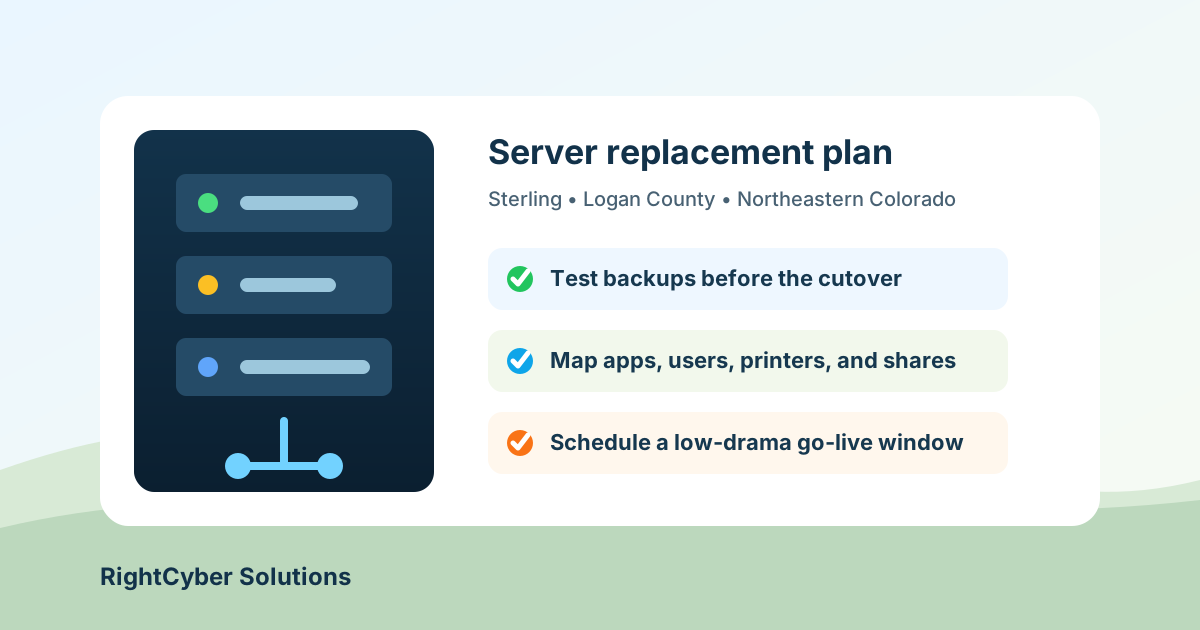
- List every application, shared folder, printer, scanner, login script, and vendor connection before buying replacement hardware
- Test backups and document restore steps before the old server is touched
- Decide what should stay on a local server and what belongs in Microsoft 365, Google Workspace, or another cloud service
- Plan the cutover around real office work, including payroll, billing, dispatch, patient scheduling, order entry, and month-end deadlines
- RightCyber helps Sterling and Northeastern Colorado businesses replace aging servers without guessing what might break
Start by naming what the old server actually does
Many small businesses have a server that quietly collects duties over years. It may hold shared files, QuickBooks or another accounting system, a line-of-business database, printer queues, scanner folders, security camera exports, domain logins, remote access tools, and vendor shortcuts. If nobody writes those jobs down, the replacement project becomes a guessing game.
Before ordering equipment or scheduling a migration, make a plain-language inventory. Which employees sign in through the server? Which applications open from it? Which folders are mapped on desktops? Which copiers scan to it? Which vendors connect to it for updates or support?
This inventory helps the business decide what must move, what can be retired, and what should be handled differently instead of copied forward just because it has always been there.
Prove the backup before planning the switch
A server replacement is a bad time to discover that backups only looked healthy on a dashboard. The safest plan starts with a real restore test: recover a sample folder, a database backup, and any critical configuration notes to a test location. Confirm that someone knows where the backups live and who receives failure alerts.
Backups should also cover the cloud services the office depends on. If email and files live in Microsoft 365 or Google Workspace, confirm whether those accounts, mailboxes, calendars, shared drives, and documents are protected separately. Cloud access often becomes part of the server cutover because users notice every missing password, sync folder, and shortcut the next morning.
For businesses that depend on accounting, dispatch, inventory, medical, legal, or manufacturing software, RightCyber also checks vendor restore instructions before the work begins. A backup is only useful if the application can be brought back in a way the vendor supports.
Choose local, cloud, or hybrid with the workday in mind
Not every aging server should be replaced with another box in the closet. Some workloads still make sense locally, especially when an application needs a local database, large files move across the office, or internet service is inconsistent. Other pieces may be better handled in the cloud, such as email, collaboration files, device management, remote access, or backup copies.
The right answer depends on how the business works. A Sterling office with large drawings, point-of-sale data, shop-floor software, or rural internet constraints may need a different design than a professional office where most work happens in a browser. The goal is not to chase a trend. The goal is to put each workload where it is easiest to support and recover.
A good replacement plan compares options in normal language: what changes for employees, what happens when the internet is down, how files are backed up, how vendors get access, and who can fix problems after hours.
Schedule the cutover around real business deadlines
The technical work matters, but timing can make or break the project. A server change during payroll, billing, crop reporting, inventory counts, month-end close, appointment-heavy clinic days, or a busy sales week creates unnecessary pressure. Ask department leads which dates are sensitive before the calendar is set.
The cutover plan should include who will be available to test, which computers are touched first, what remote workers need, how printers and scanners will be checked, and what rollback option exists if a required application does not open. Short, specific testing beats a long meeting where everyone assumes someone else checked the important thing.
For a small team, the best go-live window is usually the one that gives employees enough time to test before customers are waiting at the counter or phones start ringing.
Clean up access instead of moving old problems forward
Server projects are a useful time to remove old access. Former employees may still have disabled-but-present accounts, stale file permissions, shared passwords, vendor logins, old VPN users, or shortcuts to folders nobody owns. Copying everything as-is can bring the same risk to the new system.
Review administrator accounts, shared folder permissions, remote access tools, service accounts, and vendor access before the migration. If employees use Microsoft 365 or Google Workspace, review MFA, group membership, shared mailbox access, and recovery options at the same time. That keeps the server project connected to the way people actually sign in each day.
The cleanup does not have to slow the project down. It simply needs an owner who can say which access is still needed and which items can be archived, removed, or documented for later.
Finish with documentation people can use later
The project is not finished when the new server turns on. Someone should leave behind notes that a future technician, manager, or owner can understand: server purpose, installed applications, vendor contacts, backup locations, restore steps, admin accounts, shared folders, printer settings, scanner paths, warranty details, and support contacts.
RightCyber Solutions helps Sterling, Fort Morgan, Brush, Akron, Wiggins, Yuma, Burlington, and nearby Northeastern Colorado businesses plan server replacements, network upgrades, backup testing, cloud account cleanup, and managed IT support with less drama during the workday.
If the office server is old enough that everyone is nervous to reboot it, now is the time to map what it does and choose a safer path forward.
FAQ
How do I know when my business server should be replaced?
Warning signs include unsupported software, repeated backup failures, slow logins, hardware errors, noisy or overheating equipment, limited storage, vendor compatibility issues, and the business being afraid to reboot the server because nobody knows what might happen.
Should a Sterling business move everything to the cloud instead of buying a new server?
Sometimes, but not always. Email, collaboration files, backups, and remote access may fit well in Microsoft 365, Google Workspace, or another cloud service. Local databases, large files, specialized software, and internet limitations may still justify a local or hybrid setup.
What should be tested after a server cutover?
Test user logins, shared files, accounting or business applications, printers, scanners, mapped drives, remote access, backups, vendor connections, permissions, email links, and any workflow that employees need before the next business day starts.
Can RightCyber coordinate with software vendors during a server replacement?
Yes. RightCyber can work with accounting, medical, legal, manufacturing, point-of-sale, security camera, and other software vendors to confirm installation requirements, backup procedures, licensing, and post-migration testing.
What information should be documented after replacing a server?
Document the server role, installed applications, backup and restore process, admin access, vendor contacts, shared folders, permissions, printer and scanner settings, warranty information, remote access tools, and the person responsible for approving future changes.